How to Set Up a Kanban Workflow for Team Project Management
A Kanban board makes work visible, but a useful Kanban workflow does more than arrange cards in columns. It defines how work enters the system, who owns the next action, what counts as finished, and how a team prevents too many tasks from being started at once.
1. Start with the work, not the software
Kanban works best when work items move through recognizable states. Before building a board, write down the types of work you manage and the decisions that move an item forward. For a small delivery team, one card might represent a task such as “Review homepage copy,” while a larger project remains a separate planning record.
Choose one consistent unit of work. Mixing entire projects, one-hour tasks, and vague ideas on the same board makes throughput and workload hard to interpret. If your team needs both project-level and task-level visibility, maintain a clear relationship between them rather than pretending they are interchangeable.
List the minimum information needed to act on a card: a concise outcome, one accountable owner, priority when needed, the next action, and any deadline that matters. If a field will not influence a decision, leave it out of the first version.
2. Define five practical workflow stages
For an illustrative cross-functional team, begin with Backlog → Ready → In Progress → Review → Done. These stages describe changes in the work rather than individual departments. They are a starting point, not a universal prescription.
| Stage | Meaning | Exit rule |
|---|---|---|
| Backlog | Potential work that has not been committed | Scope and value are clear enough to prioritize |
| Ready | Accepted work waiting for capacity | Owner has capacity and required inputs |
| In Progress | Someone is actively completing the task | Deliverable is ready for the agreed review |
| Review | Work is awaiting feedback or validation | Acceptance criteria are met or changes requested |
| Done | Work meets the team's definition of complete | No further handoff required |
Write the exit rules where the team can find them. A card should not enter Review merely because someone has stopped working on it; it should include the deliverable or evidence needed for review. Likewise, Done should not mean “mostly finished.”
Keep blocked work visible. For a small board, a blocked label and an explicit blocker note may be enough. If waiting is a substantial, recurring part of your process, a separate Waiting stage may be justified. Do not create a new column for every exceptional situation.
3. Make every card actionable
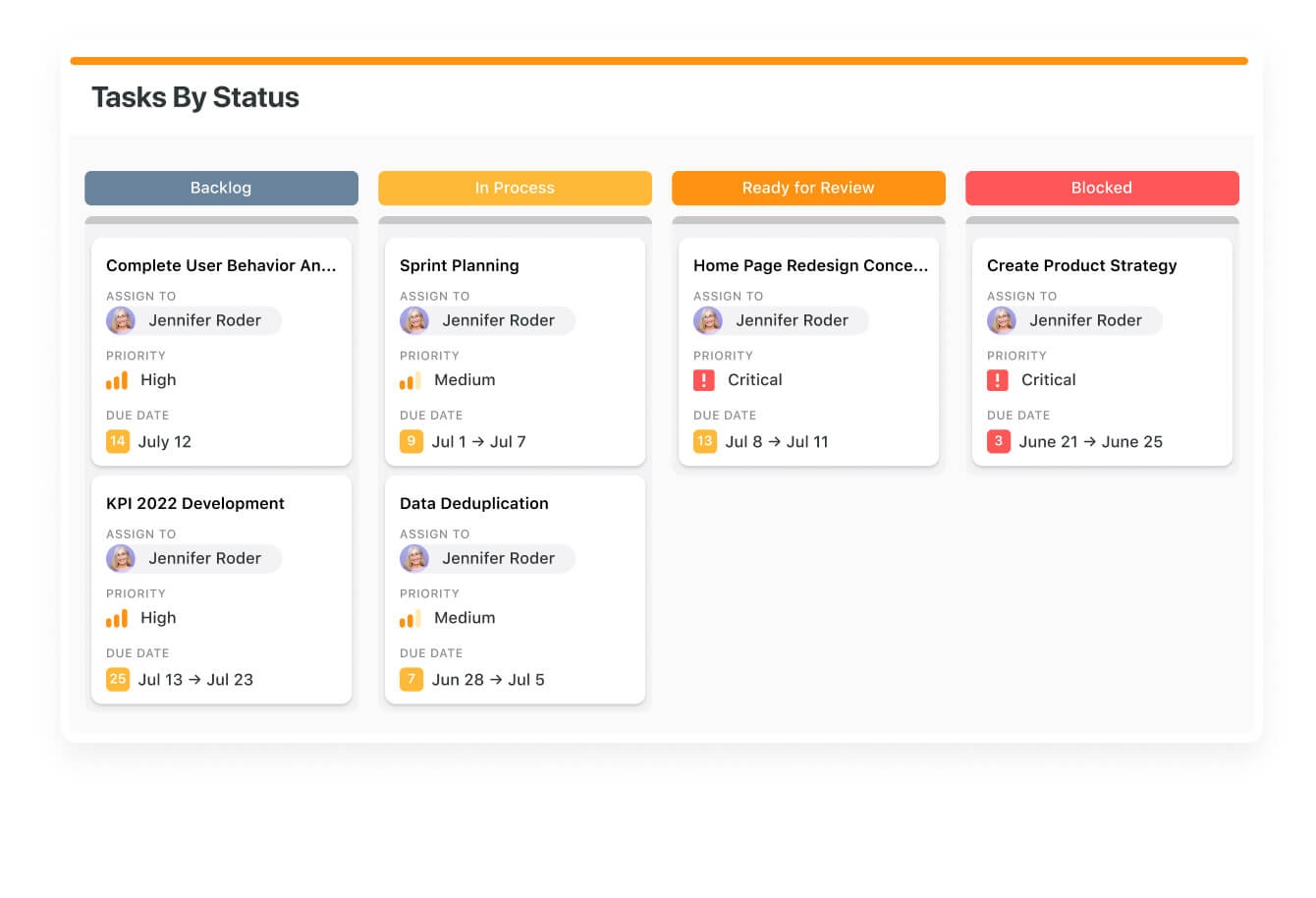
A card title should describe an observable result. “Prepare onboarding checklist” is more useful than “Onboarding.” Give the card one accountable owner even when several people contribute. Add an explicit due date only when it represents a real commitment, not as a substitute for prioritization.
For a design review task, a useful card might contain the title “Approve mobile navigation design,” owner “Design lead,” priority “Normal,” acceptance criteria “Menu works at small-screen widths and has keyboard focus states,” and a link to the design file. These are hypothetical example fields, not a claim about a SmartSuite template.
Use a small number of visible fields on the board. Detailed discussion, files, and checklists belong inside the underlying task record. A card that requires several lines of reading to understand its status will slow down board reviews.
4. Configure the Kanban view in a work-management tool
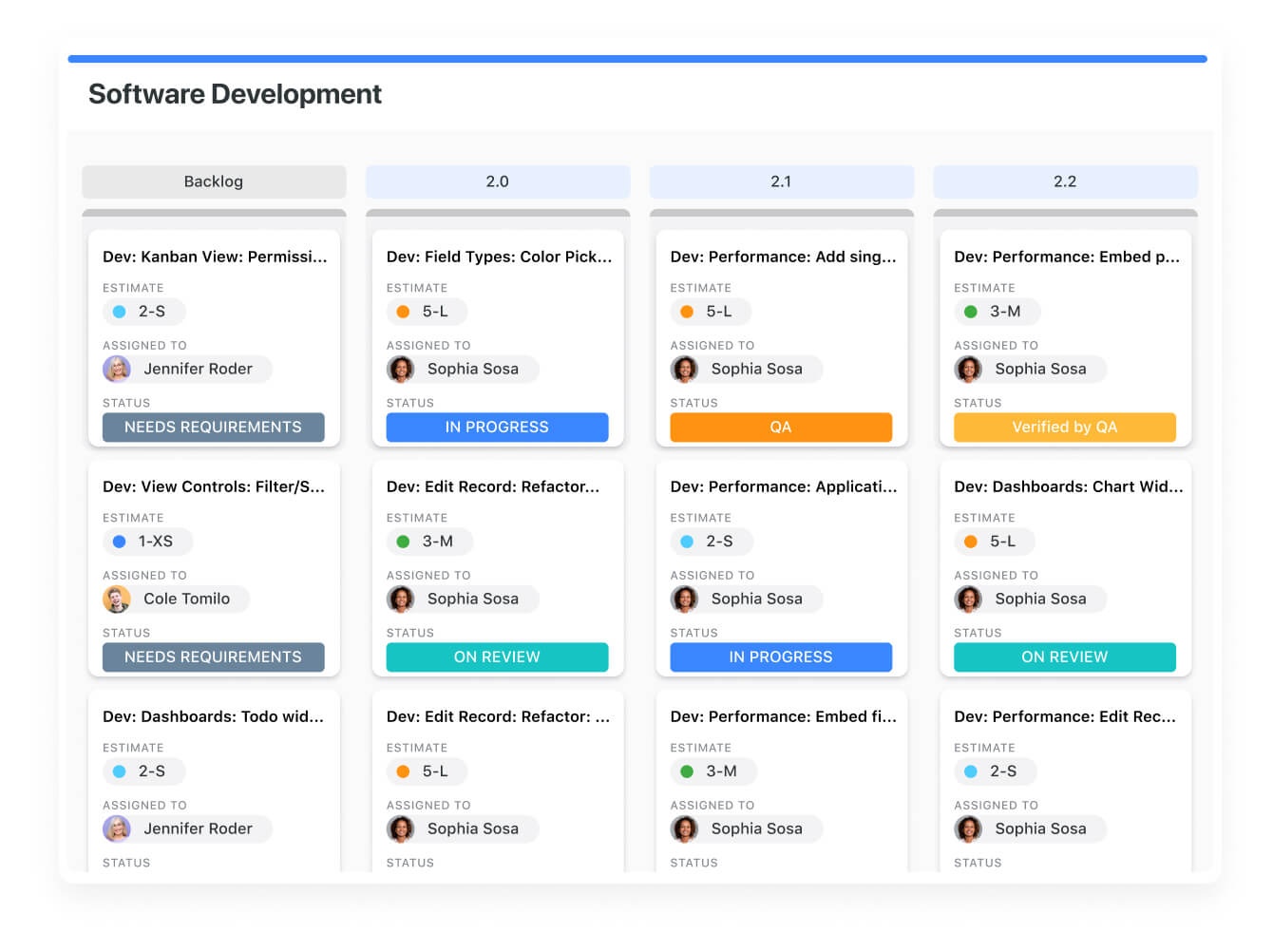
The supplied SmartSuite Kanban training transcript describes views living inside an app, with cards grouped into columns using a status or other single-select field. It also demonstrates opening records from the board and moving a card between columns to update the underlying status. This is product-specific evidence; the workflow principles above apply more broadly.
- Create the record set. Make sure tasks have a name, owner, status, and the few supporting fields the team needs.
- Define the status choices. Add your agreed stages and ensure each value has a clear meaning.
- Add a Kanban view. In SmartSuite, the training demonstrates using the app's view menu to open an existing Kanban view or create one. Current menu labels may differ.
- Group cards by status. The training demonstrates status-based columns and also switching grouping to another selectable field. Keep status grouping for a flow board unless a different grouping answers your actual question.
- Choose visible card details. Show owner and priority where helpful; avoid exposing sensitive information in shared views.
- Test one movement. Move a test record to the next column and verify that its underlying status changes as expected.
- Invite a teammate to try it. Ask them to find a blocked task, identify the owner, and explain the next action without guidance.
Before rolling out broadly, confirm permissions and any plan-specific behavior in the current product. The supplied transcript establishes the demonstrated view behavior, not a guarantee about every current subscription tier.
Watch: Kanban view demonstration
This SmartSuite training video shows a Kanban view inside a campaigns app, including status-based columns, opening records, dragging cards between stages, and changing the grouping field. Watch the grouping and status-change portions while you configure your own board.
5. Control work in progress and review the board
A board is not automatically a pull system. Without a capacity policy, a team can start too much work and leave many cards half-finished. Introduce a simple work-in-progress (WIP) agreement: for example, a three-person team might initially allow no more than three active tasks in In Progress. That number is an illustrative starting hypothesis, not a benchmark.
When the active column reaches the limit, the team should finish or unblock existing work before pulling in another task. Exceptions can be made for genuine emergencies, but record the reason so “urgent” does not become the default.
Hold a short board review focused on flow rather than individual status reporting. Ask: What is blocked? What is aging? Which item can finish next? Who can help a reviewer clear a queue? Move cards only when the underlying work actually changes state.
After two or three weeks, examine how long tasks spend waiting, how many items are completed, and where work accumulates. If Review is consistently crowded, the problem may be review capacity—not insufficient work in progress. Improve the handoff before adding more automation.
6. Example: run a small website-launch workflow
Imagine a four-person team preparing a new website. The backlog contains “Write homepage copy,” “Implement contact form,” “Review accessibility,” and “Configure analytics.” During planning, the team clarifies acceptance criteria and moves two tasks into Ready.
One developer pulls “Implement contact form” into In Progress. A copywriter works on the homepage text. When the form is ready, the developer moves it into Review and includes a test link and expected behavior. If validation fails, the card returns to In Progress with a concrete issue attached. When the test passes, it moves to Done.
At the daily review, the team notices that the form has waited for review longer than development took. Instead of starting another feature, someone with review capacity checks the form. This is the central benefit of a flow-oriented board: it makes unfinished work and handoff friction visible.
This example is a proposed workflow, not an actual customer case study or a promise of performance improvement.
7. Common Kanban mistakes—and how to correct them
Too many columns
If your board has a separate column for every team or minor sub-step, movement becomes harder to interpret. Consolidate stages around meaningful changes in the state of work. Use tags or record fields for secondary details.
Cards without a next action
A card in Waiting with no owner or blocker description is easy to forget. Require a next action and a responsible person whenever work stops.
Confusing priority with urgency
Marking every card high priority removes the usefulness of the field. Define a limited escalation policy and review priorities during intake.
Using the board as a substitute for planning
Kanban helps visualize and improve flow, but it does not automatically define milestones, resource constraints, or project dependencies. Use a calendar, timeline, or project overview when those questions matter.
Measuring people instead of the process
Do not use raw card counts to rank individual employees. Task size varies, and optimizing personal output can worsen team handoffs. Look for bottlenecks, aging work, and predictable delivery.
8. Choosing a Kanban tool
Choose software after agreeing on the workflow. Compare how easily a team can create records, customize status values, assign owners, filter views, handle permissions, and see the same work in other formats. Check the learning curve and the cost of keeping the system up to date.
SmartSuite is one option worth evaluating if your team wants Kanban alongside structured records, grid views, calendars, and dashboards. The supplied training demonstrates its Kanban grouping and card movement. Verify current pricing, feature availability, integrations, and security requirements directly before making a purchase decision.
Affiliate disclosure: WorkflowWise may earn a commission if you sign up through the following SmartSuite link. This does not change the price you pay. The recommendation is optional; the Kanban method in this guide works independently of SmartSuite.
Evaluate SmartSuite ↗Kanban setup checklist
- One consistent unit of work is defined.
- Each stage has an entry or exit rule.
- Cards have owners and clear next actions.
- Blocked work remains visible.
- The team agrees on an initial WIP policy.
- A regular flow review is scheduled.
- Changes to card status update the underlying record correctly.
- Board access and permissions have been checked.
Related workflow guides
Next, explore structuring project records and tasks, planning deadlines in a calendar, and building useful operations dashboards. These supporting pages remain on their existing URLs until the broader non-branded migration is approved.