How to Build a Shared Project Calendar Workflow
Set up a shared project calendar with consistent dates, ownership, approval stages, and a practical weekly review routine. The goal is to build a process that your team can explain, maintain, and improve—not simply reproduce a product demonstration.
Before you begin: map the real work
Identify what starts the process, which people participate, what information each person needs, and what counts as complete. Write down the current sources of confusion. A useful workflow should reduce uncertainty about ownership, next actions, and deadlines. If the process itself is undefined, adding software usually makes the ambiguity more visible rather than fixing it.
Start with a small, representative sample of work. Include a routine item, an urgent item, an incomplete item, and one that is waiting on somebody else. These exceptions reveal whether your process can cope with actual team conditions.
1. Decide what each date means
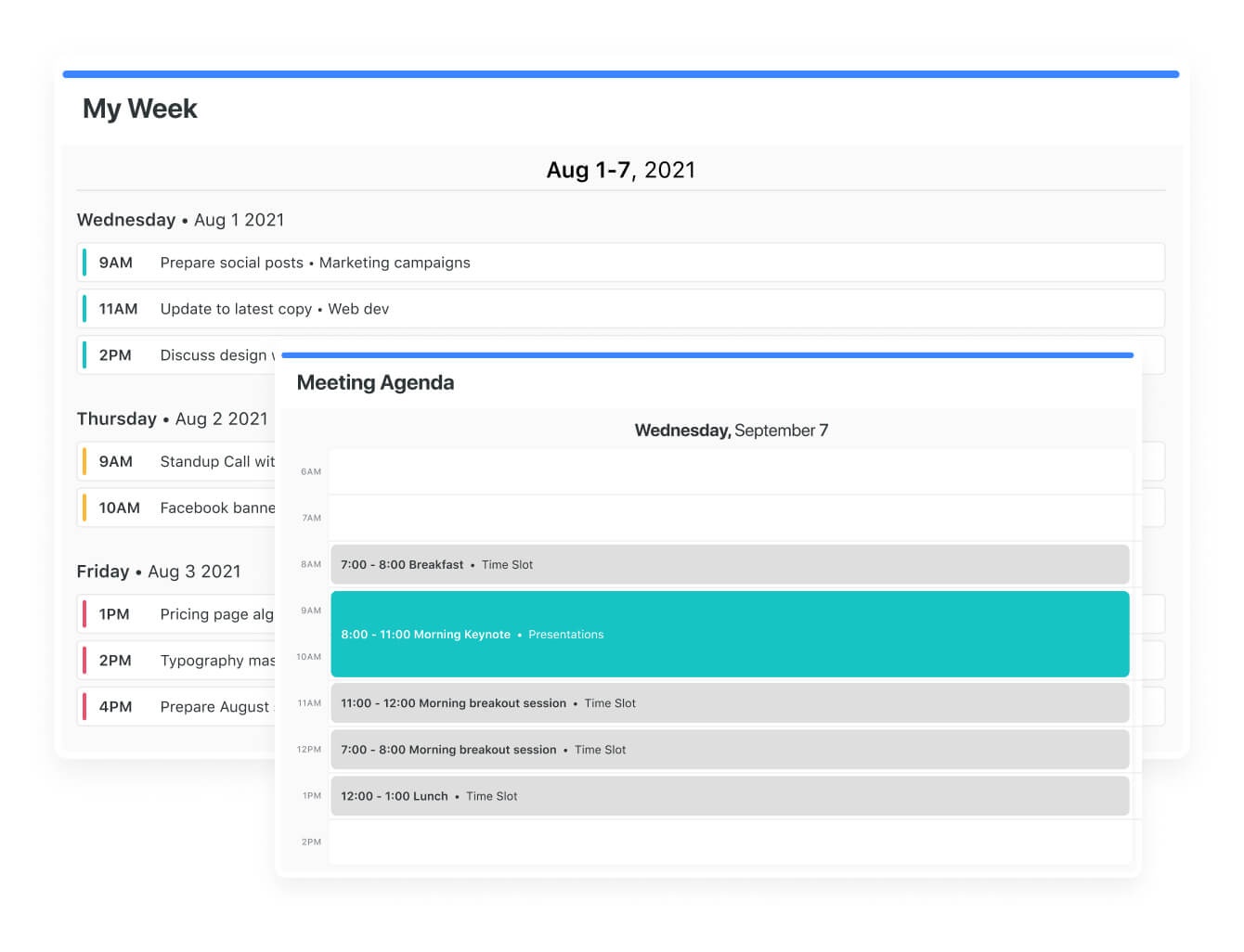
A calendar becomes unreliable when one date sometimes means a deadline and sometimes means a meeting. Use clearly named date fields and decide which field powers each calendar view.
Example in practice
For a content team, distinguish draft due date, review date, and publication date.
Implementation check
Avoid using one ambiguous field called Date for every event. Write down the rule in language a new colleague could follow. Test it with a real record and verify the outcome before applying it to the entire team.
Why this matters: A consistent definition allows colleagues to coordinate without asking for clarification every time a record changes. It also makes later filtering and reporting more reliable. If the setup creates more manual maintenance than the work it replaces, simplify the process.
2. Prepare the underlying records
Each calendar item should have an owner, status, and enough context for someone to act. The calendar is a view of work, not a substitute for a complete record.
Example in practice
A campaign asset record might include channel, responsible editor, approval status, and intended publication date.
Implementation check
Test records with missing dates so they do not disappear unnoticed. Write down the rule in language a new colleague could follow. Test it with a real record and verify the outcome before applying it to the entire team.
Why this matters: A consistent definition allows colleagues to coordinate without asking for clarification every time a record changes. It also makes later filtering and reporting more reliable. If the setup creates more manual maintenance than the work it replaces, simplify the process.
3. Build a weekly planning rhythm
Review the next one or two weeks for overloaded days, conflicting milestones, and work without owners. Update the source record when plans change.
Example in practice
A marketing team may move a planned launch after discovering that legal review is incomplete.
Implementation check
Document who can move dates and who must be notified. Write down the rule in language a new colleague could follow. Test it with a real record and verify the outcome before applying it to the entire team.
Why this matters: A consistent definition allows colleagues to coordinate without asking for clarification every time a record changes. It also makes later filtering and reporting more reliable. If the setup creates more manual maintenance than the work it replaces, simplify the process.
Watch the related workflow demonstration
The following video comes from the supplied SmartSuite training collection and illustrates a relevant interface or workflow. Use the demonstration to understand the controls, then adapt the underlying process to your team's needs. The video is not a substitute for checking current plan availability or testing your own configuration.
4. Use complementary views
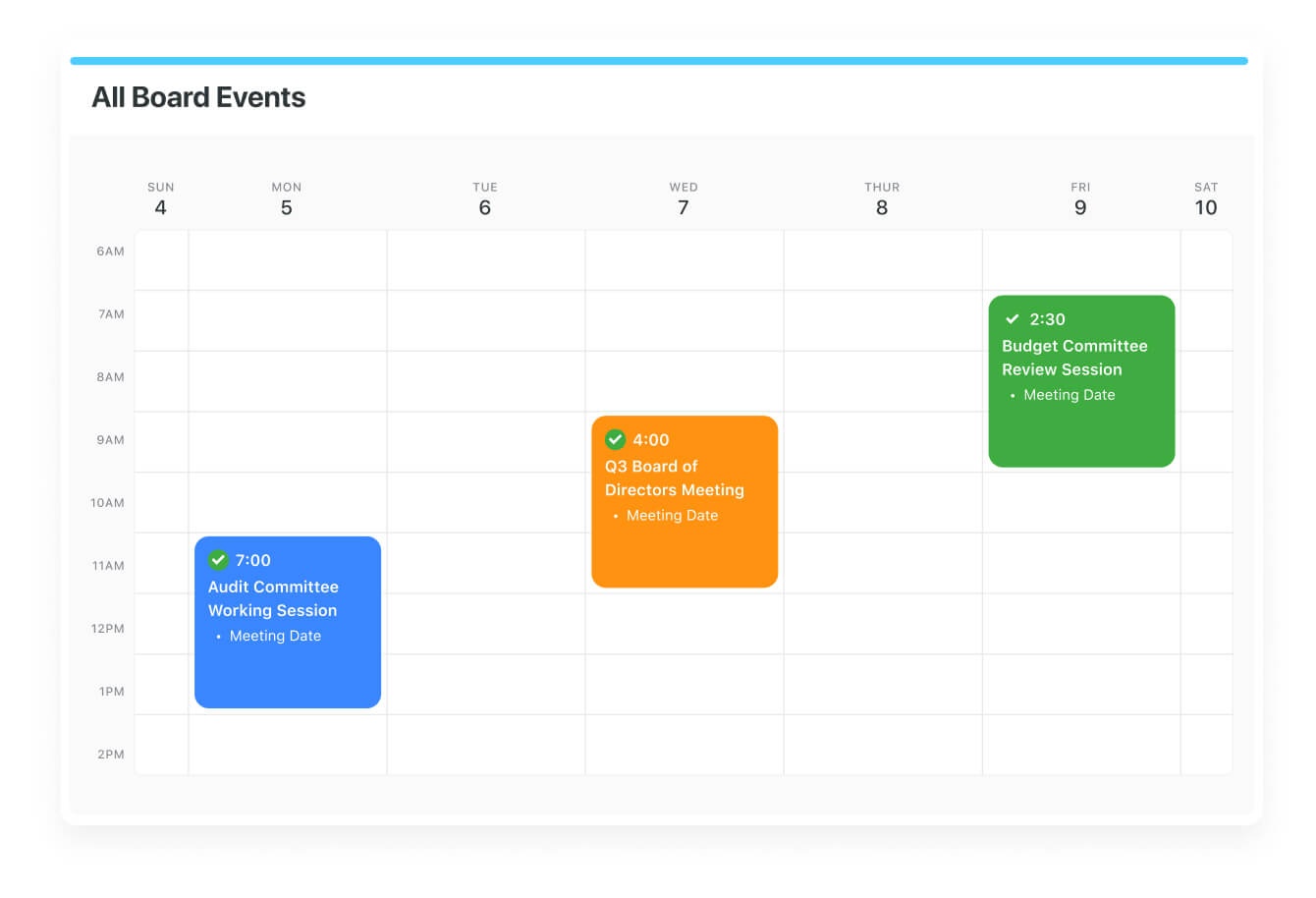
A calendar answers when; a board answers which stage; a grid shows detailed fields. Use different views of the same records instead of maintaining separate schedules.
Example in practice
An editor checks the calendar while a producer works from an approval board.
Implementation check
Verify that edits remain synchronized across views. Write down the rule in language a new colleague could follow. Test it with a real record and verify the outcome before applying it to the entire team.
Why this matters: A consistent definition allows colleagues to coordinate without asking for clarification every time a record changes. It also makes later filtering and reporting more reliable. If the setup creates more manual maintenance than the work it replaces, simplify the process.
5. Handle exceptions deliberately
Time zones, recurring work, dependencies, and reminders can complicate calendar use. Verify actual product behavior before making commitments to clients.
Example in practice
For a distributed team, define whether deadlines refer to local time or a shared business time zone.
Implementation check
Test reminders and time-sensitive updates with representative users. Write down the rule in language a new colleague could follow. Test it with a real record and verify the outcome before applying it to the entire team.
Why this matters: A consistent definition allows colleagues to coordinate without asking for clarification every time a record changes. It also makes later filtering and reporting more reliable. If the setup creates more manual maintenance than the work it replaces, simplify the process.
How to roll this out without disrupting the team
Run the first version with a limited group of users. Observe where they hesitate, which fields they leave empty, and what questions they ask. Document the current workflow before adding automation. Review the pilot after a short, defined period and keep the changes that demonstrably improve clarity or handoffs.
- Choose one owner: appoint somebody to maintain the workflow definitions and resolve inconsistent records.
- Agree on update timing: decide when users must record changes and what happens if they cannot.
- Review exceptions: regularly inspect blocked, overdue, or unassigned work instead of treating the dashboard as a passive report.
- Adjust one variable at a time: change a stage, field, or notification and check whether it reduces friction.
- Document the result: keep a short explanation of the workflow so new team members can follow it.
Common mistakes to avoid
Adding more fields than people can maintain
Every required field creates an update obligation. Remove fields that do not drive a decision, handoff, or report. If a field is frequently left blank, ask whether it is genuinely needed.
Building dashboards before the records are reliable
Charts and summary views can make inaccurate information look authoritative. Validate underlying records and field definitions first, then use reporting to identify exceptions.
Assuming software replaces accountability
Software can display ownership and route work, but it cannot decide who should be responsible. Assign clear decision rights and escalation paths before relying on automated notifications.
Software selection: when a flexible work platform may help
A structured work-management platform can be useful when the same records need multiple views, owners, and repeatable handoffs. SmartSuite is one platform to evaluate for these needs. Before choosing it, confirm the current capabilities, limits, permissions, integrations, and pricing against your requirements. The workflow principles above can be applied without SmartSuite.
Affiliate disclosure: The following recommendation uses a tracked affiliate link. WorkflowWise may earn a commission if you purchase after visiting the vendor, at no additional cost to you. Our guidance is independent and the educational steps do not depend on a purchase.
Evaluate SmartSuite against your requirements
Use the pilot checklist above while reviewing the product's current features and plan information.
Visit SmartSuite ↗Frequently asked questions
Should we start with a template?
A template can be a useful reference, but compare its fields, stages, and permissions with your actual process. Remove anything the team cannot explain or maintain.
How do we know whether the new workflow is better?
Choose observable outcomes before the pilot: fewer missing owners, fewer overdue handoffs, shorter time spent preparing updates, or fewer duplicate records. Avoid claiming improvement without baseline measurements.
When should we automate?
After the manual process has predictable inputs, owners, and outcomes. Automation applied to inconsistent records can accelerate mistakes and make exceptions harder to diagnose.